
Upsell Discounts: Now With Strikethrough Pricing
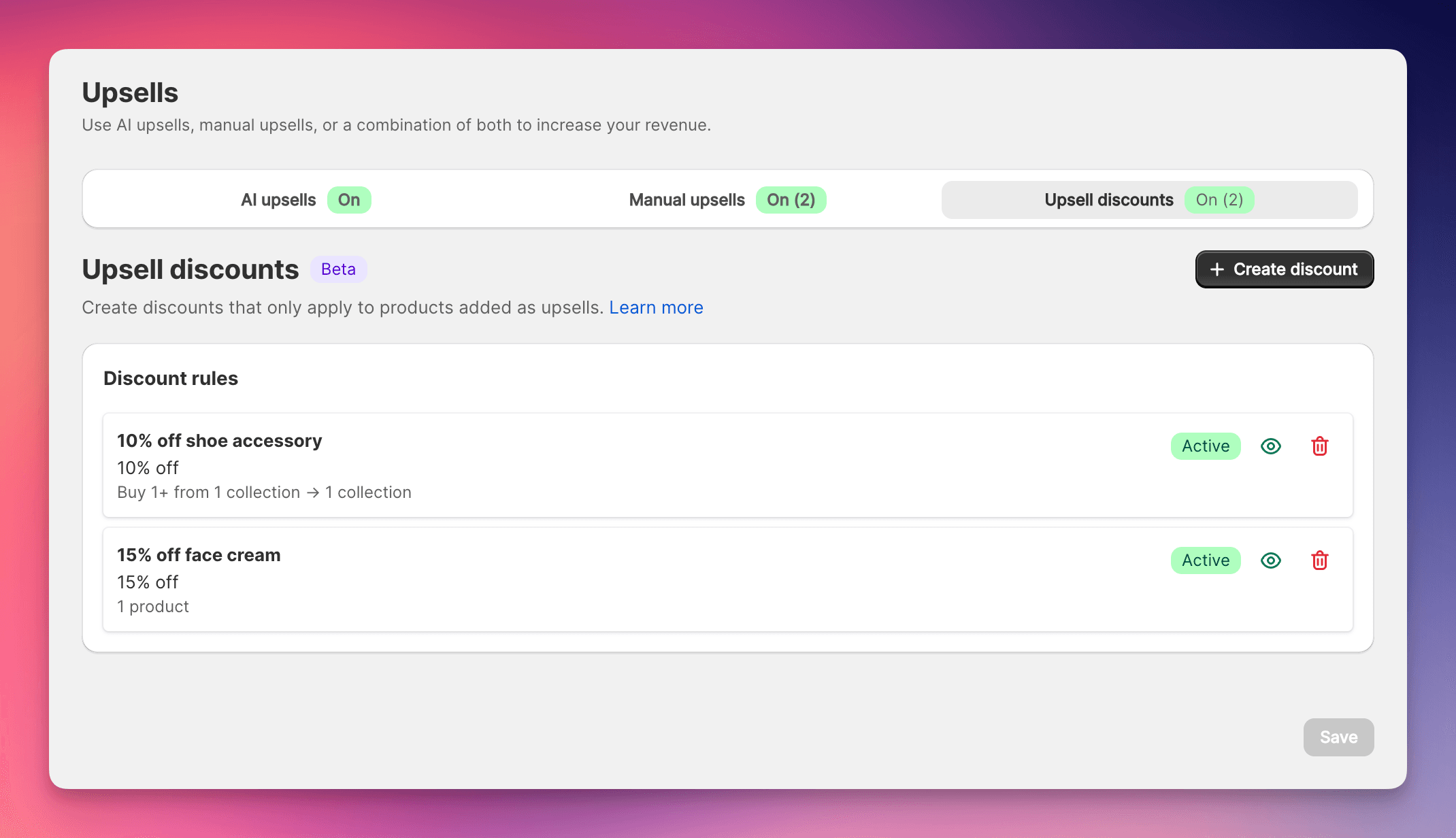
Upsell discounts just got a major upgrade. You can now show customers the savings before they add a product to cart.
The Update
Upsell discounts now come in two types: Promotional and Advanced. When you click "Create discount," a type-selection modal lets you choose the right one for your use case. This choice is permanent per discount - to switch types, delete and recreate.
The biggest addition is strikethrough pricing. Promotional discounts show the original price crossed out directly on upsell product cards, so customers see the deal before they click "Add." No more hoping they'll notice the savings at checkout.
Promotional Discounts
Promotional discounts are designed for one thing: visible savings that drive conversions.
- Percentage-only - set a single percentage (e.g., 15% off)
- Strikethrough pricing - the original price appears crossed out on the upsell card, with the discounted price next to it
- Simple targeting - apply to all upsell products or specific products (no collections)
- Optional minimum quantity - require a minimum number of items in cart
Because the strikethrough calculation needs a percentage, fixed amounts aren't available here. The trade-off is simplicity and visibility - customers see the deal instantly.
Advanced Discounts
Advanced discounts offer the full feature set for complex promotional strategies.
- Percentage or fixed amount - choose the discount type that fits your promotion
- All targeting options - target all upsells, specific products, or entire collections
- Buy X Get Y - require specific products in cart before the discount applies
- Minimum requirements - set minimum purchase amount or item quantity
- Stacking control - decide whether to combine with other product, order, or shipping discounts
Advanced discounts also show strikethrough pricing, but only after a product is added to the cart. The discount still appears automatically at checkout.
How to Choose
| Promotional | Advanced | |
|---|---|---|
| Best for | Simple percentage deals with visible savings | Complex rules, fixed amounts, bundle promotions |
| Strikethrough | Before adding to cart | After adding to cart |
| Discount types | Percentage only | Percentage or fixed amount |
| Targeting | All upsells or specific products | All upsells, products, or collections |
| Buy X Get Y | No | Yes |
| Minimum requirements | None or item quantity | None, purchase amount, or item quantity |
When in doubt, go with promotional. The visible strikethrough pricing is more effective at driving conversions, and it's the simpler setup.
Common Setups
Promotional - Accessory incentive: 15% off all upsell products. Customers see the savings on every upsell card.
Promotional - Targeted sale: 20% off specific products only. Highlight deals on items you want to move.
Advanced - Volume reward: $5 off upsells when cart reaches $100. Encourages larger orders.
Advanced - Bundle deal: 20% off coffee pods when any coffee maker is in cart. Classic Buy X Get Y.
Configuration
Navigate to Upsells → Upsell Discounts in your sidebar and click Create discount. Choose your type in the modal, then fill out the form. Toggle discounts active or inactive without deleting them - useful for seasonal promotions.
Each discount shows a type badge ("Promotional" or "Advanced") in the list so you can tell them apart at a glance.
For detailed setup instructions, see our help article on upsell discounts. See also: per-flow promotional pricing for an alternative approach. Available on Professional and Enterprise plans.