
How to Add a Terms and Conditions Checkbox to Your Shopify Cart
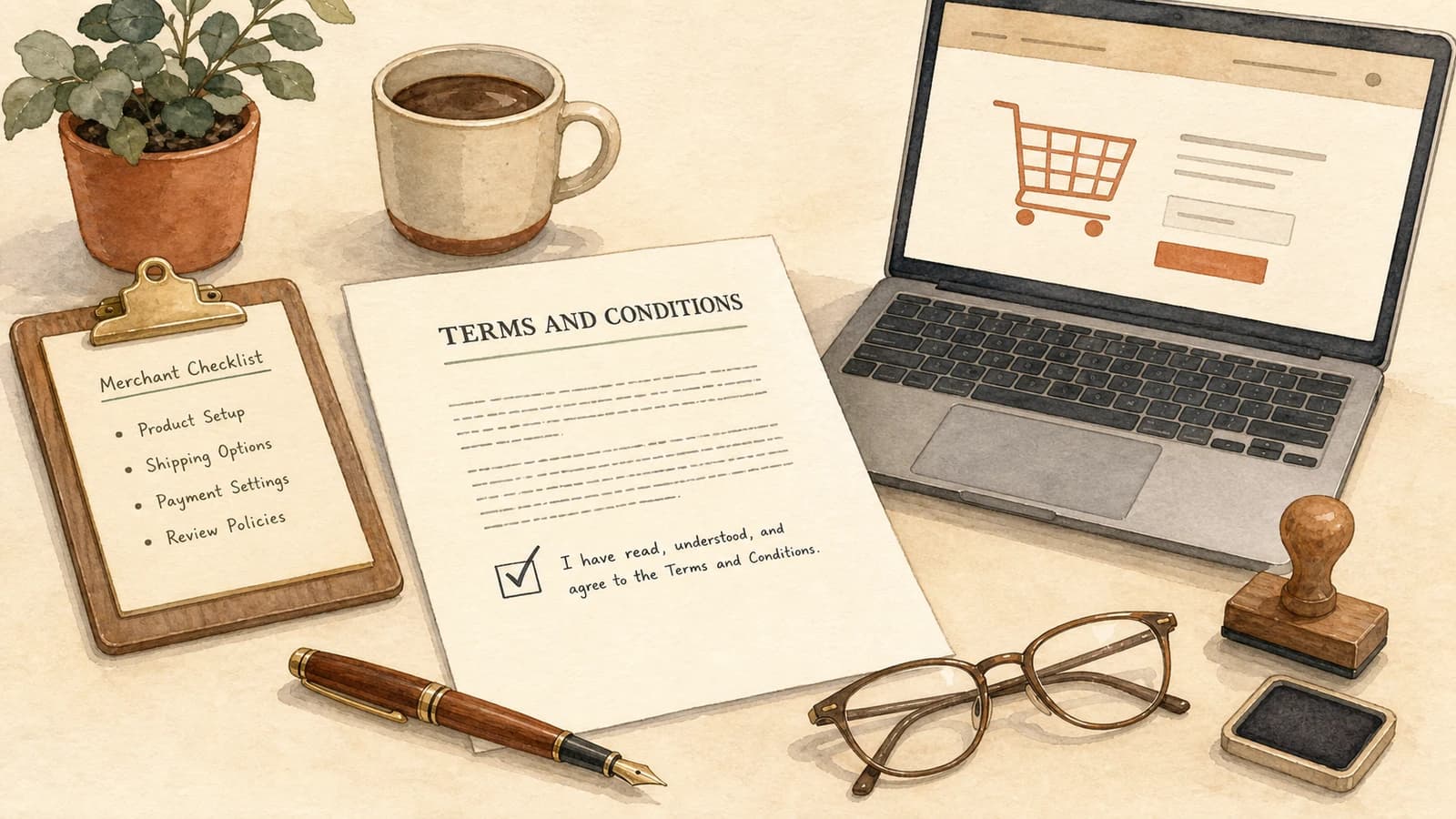
Sooner or later someone tells you your store needs one: a terms and conditions checkbox the customer has to tick before they can buy. It might be your accountant, a lawyer, a marketplace partner, or a customer disputing a charge by claiming they never agreed to your return policy. You open your Shopify admin looking for the setting, and it is not there. There is no toggle that adds a required agreement tickbox before checkout.
That is not an oversight on your part. Shopify genuinely does not ship one, and the place most merchants instinctively look for it is the one place they cannot touch. This guide covers where the checkbox actually belongs, how to make it enforceable, and how to word it. One note up front: this is a practical setup guide, not legal advice. What your store must collect depends on where and what you sell, so confirm the specifics with your own advisor.
Why Shopify Has No Native Terms and Conditions Checkbox
Shopify's checkout is deliberately locked down. It handles payment data, so Shopify restricts what merchants and apps can inject into it. Custom fields and checkboxes on the information, shipping, and payment steps are built with checkout UI extensions, and those steps are available only on Shopify Plus. For everyone on Basic, Grow, or Advanced, the checkout is effectively read-only, which is one line in the full inventory of what Shopify supports natively.
There is also no store-wide setting elsewhere in the admin. Shopify's policy pages exist under Settings → Policies, and they get linked in the checkout footer, but a footer link is passive. Nobody has to look at it, and nothing stops the order if they do not.
So merchants improvise, usually in one of three ways:
- Editing the theme directly. A developer drops a checkbox into the cart template or drawer snippet. It works until the next theme update or theme switch wipes it out.
- Putting it on a pre-cart page. An interstitial page that shoppers skip constantly, because most of them never load it.
- Doing nothing and hoping the policy link is enough. Common, and the reason the dispute happens in the first place.
Only one surface is both fully customizable and unavoidable on every Shopify plan.
The Cart Is the Right Surface, Not the Checkout Page
The cart belongs to your theme. That means it is customizable on every plan, no Plus required, and it is the last screen every shopper passes through before payment. Collecting agreement there has three practical advantages over trying to do it at checkout.
It works for all stores. No plan gate, no checkout extensibility project, no developer sprint.
It happens before the commitment. Agreement is collected before the shopper hands over payment details, which is the moment that matters if the terms cover returns, delivery windows, or subscription renewals.
It is enforceable. A cart-level implementation can hold the checkout button until the box is ticked. A footer link cannot.
One thing to plan for: accelerated payment buttons. If Shop Pay, PayPal, Apple Pay, or Google Pay buttons sit in your cart, they can carry a shopper straight into an express flow. If a required agreement genuinely matters for your store, decide deliberately whether those buttons belong above your consent gate, and consider hiding them from the cart while the requirement is in force. It is a real trade-off between conversion and coverage, and it should be a decision rather than an accident.
Unticked by Default Is the Whole Point
This is the part merchants most often get wrong, usually with good intentions. Pre-ticking the box removes a click, and removing clicks usually helps conversion. It also tends to destroy the value of the checkbox.
Consent that is worth anything has to be an active, deliberate act by the customer. EU rules in particular treat pre-ticked boxes as no consent at all, and the same reasoning shows up in consumer protection regimes elsewhere. If the box arrives already ticked, the shopper did nothing, and "they agreed" becomes very hard to argue.
Two related rules follow from the same principle:
- It stands on its own. A separate, specific acknowledgment is stronger than a clause buried inside a long terms page. If you need agreement to something specific, ask for it specifically.
- The wording is plain. "I have read and accept the terms and conditions and the privacy policy" is better than a paragraph of legalese nobody reads.
Some setups offer a pre-ticked option for jurisdictions where it is acceptable and the checkbox is a soft reminder rather than a legal requirement. If your reason for adding the box is legal, leave that option off.
Blocking Checkout Until It Is Ticked
A checkbox that does not stop anything is decoration. The behavior you want is simple: the shopper clicks Checkout without ticking the box, checkout does not proceed, and a short message tells them exactly what to do.
Keep that message instructional, not scolding. "Please accept the terms and conditions to continue" tells the shopper what is missing in one line. Anything longer just delays them.
Also keep the state sane during the session. A shopper who ticks the box, goes back to browse, and returns to the cart should not have to tick it again. Making people repeat the same confirmation is how a compliance element turns into an abandonment trigger.
Where the Agreement Is Actually Recorded
Be clear-eyed here, because merchants often assume more than they have. A cart checkbox is an enforcement gate, not an archive. It ensures nobody reaches checkout without confirming. It is not, by itself, a signed and timestamped contract in a vault.
The durable evidence comes from the paperwork around the order, and two habits carry most of the weight:
- Version and date your policy pages. If you change your return policy, keep the previous version along with the dates it was live. An order from March needs the March terms, not today's.
- Reference the terms in your order confirmation. Shopify's confirmation email is a durable record sent to the customer, and the order itself establishes the date. Linking your terms there ties the order to the policy in force at the time.
For a category where the acknowledgment carries much heavier weight, see our guide on the right-of-withdrawal checkbox for digital products in the EU. That is a distinct, additional tick that sits alongside your general terms box rather than replacing it.
Selling Across Several Countries
If you ship internationally, "the terms checkbox" is rarely one thing. A German shopper may need to confirm your AGB, a US shopper may not need to confirm anything, and wording that is correct in one market can be meaningless in another.
Two capabilities make this manageable: translated checkbox text, so each shopper sees the sentence in their language linking to the right policy page, and conditional display, so the box only appears where it is required, which we work through in country-specific consent for EU shoppers.
The second has a catch. A shopper sitting in Berlin can switch your store to the US market to browse in dollars. For pricing, the selected market is the correct signal. For a legal requirement, physical location usually is. We unpack the difference in selected market vs. physical location geo-targeting.
Setting It Up in EliteCart
EliteCart includes this as a standard cart feature. In your admin, go to Cart designer → Features → Terms and conditions:
- Under Status, tick Enable. The checkbox appears in the cart summary, below the totals and directly above the checkout button.
- Under Texts, write your Checkbox text and your Alert text. Parts of the checkbox text can be turned into links, so "I accept the terms and conditions and the privacy policy" can point each phrase at a different page.
- Under Links, enter the relative paths to your policy pages, for example
/policies/terms-of-serviceand/policies/privacy-policy. - If your store runs multiple languages, use the language tabs to enter each translation.
- Leave Checked by default in the Advanced section switched off unless you have a specific reason and have cleared it with your advisor.
With that saved, checkout is blocked until the shopper ticks the box, and your alert text explains why. If you need additional legal copy in the cart that is informational rather than a required tick, custom HTML sections can place a notice at a specific position without any theme edits.
Finally, do not confuse a consent checkbox with the separate EU obligation to let customers cancel after buying. Different moment, different mechanism, and we cover it in the EU withdrawal button guide.
Add the checkbox where you actually control the page. Shopify will not give you a required tickbox at checkout unless you are on Plus, but the cart is yours on every plan, and it can hold the checkout button until the shopper confirms. Keep it unticked, keep the wording short and specific, link it to policy pages you version and date, and show it only where it is needed. Then get the exact wording signed off by someone qualified, and the whole thing stops being a loose end.