
NEW: Editable Cart Quantity Field
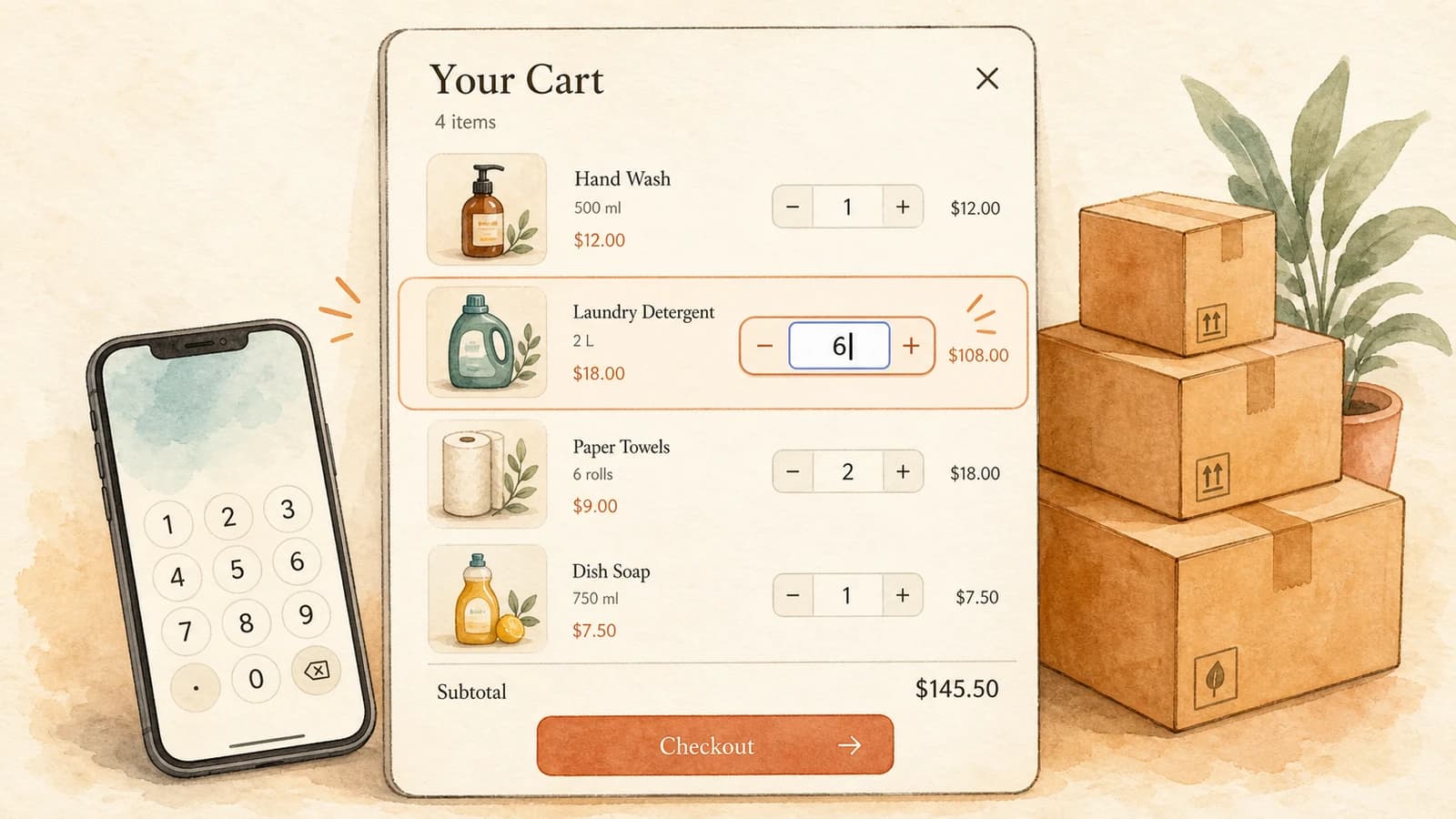
Shoppers can now type a quantity directly into the cart instead of only tapping the minus and plus buttons - changing a line from 2 to 12 in one step instead of clicking plus ten times.
The Update
The quantity number on each cart line used to be a static value you could only adjust with the minus and plus buttons. That is fine for small changes, but tedious for bulk orders and wholesale carts. With the editable quantity field turned on, that number becomes a proper input shoppers can type into.
What's New
Type any amount: Click the quantity and enter a number directly. The change is committed when the shopper taps away from the field or presses Enter, not on every keystroke, so there is no flicker while they type.
Type 0 to remove: Entering 0 removes the line item, exactly like lowering it past the minimum with the minus button.
Respects your quantity rules: Typed values snap to the product's Shopify quantity rules - minimum, maximum, and increment. If the server clamps or rejects a change (for example when stock runs out), the field resyncs to the real cart quantity automatically. Empty or non-numeric entries revert to the current quantity.
Built for mobile: The field opens a numeric keyboard on phones and is sized to avoid the automatic zoom iOS applies to small inputs.
Impact on Your Store
Customers placing larger orders get to the right quantity in one action instead of a dozen taps. That is especially valuable for wholesale, B2B, and consumable products people reorder in bulk - less friction at exactly the moment someone is deciding how much to buy.
Configuration
Cart Designer → Product display → Editable quantity field. It is off by default, so your cart keeps the static number with minus and plus buttons until you turn it on. Check the box, preview it in the cart on the right, and save.
Why This Matters
Small friction in the cart costs conversions. Letting shoppers set a quantity the way they expect - by typing it - removes a needless point of annoyance right before checkout.